Thursday, October 26, 2006

Using a 100% FREE platform to blog

If you don't currently have a blog then you can set up a free blog at Blogger.com. I personally use Wordpress because it has a bunch of "plug-ins" that can be added for the purpose of tagging and pinging.

You can download Wordpress for free from wordpress.org. Follow their installation instructions to get it set up on your server. If you have cPanel on your hosting account, you can quickly install a Wordpress blog using Fantastico.
If you’ve never installed Wordpress before and you’d like to but maybe you’re a little scared of installing it (ssh! I won’t tell!) I’ve created a visual tutorial in Flash which explains the steps involved. If you find it useful, please let me know here.

To view the tutorial, view it here.
Hope you'll like it.

Wednesday, October 25, 2006

How to find a hungry market perfectly fit for a blog-2

Once you've got the idea about peoples searching nature next thing you've to think about the name of your blog.
It is alaways a good idea to name your blog with the keyword of your topic. For example if you are thinking about starting a blog with a name like skype.domainname.com .
'Wired' & 'Gadget' are two frequent search on google and so i named my blog wired-gadget.blogspot.com.

For instance, let's say you decide to promote an auto auction weblog. The first thing you want to do is read the website from start to finish, jotting down relevant words prospective customers could use when searching for that particular website. After reading the website you will probably come up with keywords such as this:

* Auto Auction
* Online Car Auction
* Repo Auction

After writing down some relevant terms from the weblog you will be promoting, you need to do some research and find many other relevant terms - 20 to 30 terms per site is a good starting point. The following tools will make finding relevant keywords a breeze!
Overture Keyword Assistant

Type a keyword in this tool and Overture will give you all the possible combinations of that keyword and how many times each word was searched last month. This is helpful in finding out how popular each term is at the present time. (see Fig2 below)


7Search Keyword Suggestion Tool

Type a keyword in this tool and 7Search will give you all the possible combinations of that keyword, how many times each word was searched last month, and the bid amount. (see Fig3 below)

So name your blog with a keyword of your choosed topic.

Tuesday, October 24, 2006

How to find a hungry market perfectly fit for a blog-1

OK , you are going to start a blog - your own blog ! You and only you are the author of your blog . Right ? So , start a blog about something that you know - you can write about. But our goal is to make a blog which will make some money - that amount of money which is sufficient to leave your day job within some months. So we have to think about our niche market.
If we know what people are searching in a bigger volume and you know something about any of their search then it will be better to start a blog on that subject.
Finding the right niche to promote on the internet is fairly easy these days with all the free tools at your disposal. Obviously you want to market exceptional products in a hot market, but just how do you do that? Easy! Follow the steps below to find what's in and what's not on any given day.

Google Zeitgeist:

For both breaking news and obscure information alike, people around the world search Google. This flurry of searches often exposes interesting trends, patterns, and surprises. The Google Zeitgeist page is regularly updated to reflect tidbits of information related to the search behavior of Google users. (see Fig1 Below)

Click Here To Enter Google Zeitgeist!


Lycos 50:

A weekly report of the top 50 searches done on Lycos. The Lycos 50 lists the people, places and things which are most on the public mind as reflected by Lycos user searches over the past week. The Lycos 50 list is updated once per week. The new list comes out every Tuesday at 6:00 am Eastern time. The daily reports are released Monday through Friday mornings at the same time. (see Fig2 below)

Click Here To Enter Lycos 50!

Jeeves IQ:

Most popular search terms based on the millions of queries asked on Ask Jeeves each day - from consumer trends to breaking news, the report provides valuable insight into consumer needs, habits, trends and interests. (see Fig3 below)

Click Here To Enter Jeeves IQ!

Yahoo! Buzz Index:

The Yahoo! Buzz Index is published Tuesday through Saturday. All the rankings on the Yahoo! Buzz Index -- both movers and leaders -- are updated each weekday and reflect the traffic from two days earlier. For example, Wednesday's Buzz Index reflects Monday's searches and clicks. (Twenty-four hours are required to process data and verify results.) The data is collected from Yahoo! search log files. The Yahoo! Buzz Index counts the total number of people searching for specific subjects. Individual users and their searches remain completely anonymous. (see Fig4 below)

Click Here To Enter Yahoo! Buzz Index!


Now you know what people search for in bigger volume and if you have a little bit knowledge about any one of the searched subject then start a blog on that subject.

Monday, October 23, 2006

Blog Class Room Series

Hello friends ,sorry for long interval .Actually i was busy with preparing a free course for new bloggers to ensure their blogging success and i've devloped a free 6 week course for them.

Week 1


During the first session you will learn Blogging Basics; including what a blog is, why you need to start blogging as soon as possible and the videos will show you exactly how to do just that!

How to find a hungry market perfectly fit for a blog - this is KEY to getting traffic immediately.
Using a 100% FREE platform to blog (the other ones are horrible and useless)!
The Number 1 reason NOT to use Blogger.com
Installing your blog in less than 3 minutes - even for complete newbies!
Quickly making your blog absolutely beautiful with minor tweaks.

The THREE magic words that are 80% responsible for whether your blog succeeds or not.

Week 2

Never suffer from writer's block! I'll present you with a fist-full of ways to generate a constant flow of fresh ideas for your blog's content.
The most important element to in your post for search engines.
Should a post be 100, 250, 500 or 1000 words long? Does it matter? (Hint... Yes it does)
How often should you post to your blog?
Quickly uploading pictures to your blog with a few clicks of the mouse...
Adding great video content without ever filming a thing!

A feature that lets the world know you've made a new post - without you lifting a finger.

How to generate THOUSANDS of backlinks without ever requesting a single link!

Week 3

This week we talk about the best ways to MONETIZE your blog! What good is to have a great blog with lots of traffic if you don't know how to make money from that blog! Listen in as we discuss the strategies we use. Also, watch this blog and begins to add monetization to LIVE example blog!
The tactics to use if you are marketing your own products.
The top 3 ways to immediately begin monetizing your blog!
NO! Adsense is NOT your only choice, there are many great (in many cases, better) alternatives.
How to write your posts to get the MAXIMUM click-throughs!
The best places to be placing your ads.

Should you use multiple ads or just 1 main ad?


Week 4

This might be one of the most powerful weeks out of the entire 6 weeks. I am going to go over an abundance of traffic generation ideas that we have used, continue to use and are easy to duplicate!

At least 8 ways to bring FREE traffic to your blog.
The 1 technique that can bring traffic to your blog the DAY you launch - FREE.
Marketing your blog through someone else's blog!
How to use VIDEOS to market your blog.
The "magical" directories that your blog MUST be listed in.

The best "PAID" source of traffic that money can buy.

Week 5

Learn how to sell to the same visitor over and over. One of the most missed strategies online is how to optimize your CURRENT visitors - instead of always trying to get NEW visitors, how about getting current ones to come back over and over!

This week we talk about the top strategies to generate loyalty amongst your readers and to get them to buy from you over and over (and refer your blog to everyone they know)!

The #1 strategy to use to get recurring visitors EACH time you make a post - Automatically!
What's a "blogroll" and how can it attract targeted visitors from other's blogs to your blog.
The 1 plug-in that will allow you to get your blog on people's Yahoo and Google Home pages!
Exactly how to know how many readers are "subscribed" to your blog...
The FREE service you can use to help make it easier for others to follow your blog in multiple ways.


Week
6

Listen in as I summarize the 6 weeks and put it all together for you. I'm going to monitor the blog posts and answer any questions that seem to be coming up over and over.

More specifically, I'm going to also cover these general topics:

Developing blogging into an actual BUSINESS model
How to run and manage multiple niche blogs...
The importance of RSS syndication and why you need to focus on that!
More important information to help you stay on top of the one strategy I uses to get traffic the day I launched.

Monday, September 18, 2006

The Lenovo X60 is still an IBM at heart.

-The only difference between man and boys is the size of their toys.

The old adage rings true once more , and this time it's in the form of the Thinkpad x60 - Lenovo's [formerly IBM] latest entry into the ultra portable laptop market. The branding still reads IBM , but what's more important is that it's still a Thinkpad at heart - clearly an "if it aint broke , dont fix it " approach at work here.
What's really going for the X60 isn't just the slim profile [10.5" X 8.3" X 1.39"] and light weight [1.2 kg] -crucial features nonethless for frequent buyers -but the fact that Lenovo has somehow packed in a solid , workhorse T2400(1.83 GHz) Centrino Duo processor into the X60 , making it one of the lightest notebooks to incorporate dual-core (two processors on one chip) technology. The result is a surprisingly and refreshingly puppy notebook-never thought i'd be saying this about an ultra portable - that manages to handle antivirus scans running on one processor without degrading overall system experience. The Centrino Duo also allows for longer
periods without a recharge -as long as five hours with the internal four cell battery.

Being a thinkpad the X60 retains some old faithful features- the Thinkvintage productivity center for managing your pc [wireless connections . backups and support] , the integrated fingerprint reader for managing your passwords , the active Protection system which detects drops and switches off the 60GB 5400 rpm hard disk or even the keyboard-roomy and very comfortable , especially for a laptop this size. Then again being a Thinkpad , the X60 is fated with a black and somewhat bland chassis and very plane looks.

On the connectivity front , the X60 has the basic in place - 802.11 a/b/g wireless , gigabit ethernet , infrared and for old-timers , a 56k modem -Bluetooth isn't supported though.

The 12.1 inch display offers a maximum resolution of 1024 x 768 pixels and the inclusion of the Intel 950 integreted graphics card and a tinny , 0.5W internal speaker suitable only for the most basic Windows sounds reasserts the fact that the X60 is not meant to be a multimedia machine , and is strictly a business machine.

Thursday, September 14, 2006

Google Advanced Search Technique.

Google Web Search Features

In addition to providing easy access to billions of web pages, Google has many special features to help you to find exactly what you're looking for. Click the title of a specific feature to learn more about it.

Book Search

Use Google to search the full text of books.

Cached Links

View a snapshot of each page as it looked when we indexed it.

Calculator

Use Google to evaluate mathematical expressions.

Currency Conversion

Easily perform any currency conversion.

Definitions

Use Google to get glossary definitions gathered from various online sources.

File Types

Search for non-HTML file formats including PDF documents and others.

Froogle

To find a product for sale online, use Froogle - Google's product search service.

Groups

See relevant postings from Google Groups in your regular web search results.

I'm Feeling Lucky

Bypass our results and go to the first web page returned for your query.

Images

See relevant images in your regular web search results.

Local Search

Search for local businesses and services in the U.S., the U.K., and Canada.

Movies

Use Google to find reviews and showtimes for movies playing near you.

Music Search

Use Google to get quick access to a wide range of music information.

News Headlines

Enhances your search results with the latest related news stories.

PhoneBook

Look up U.S. street address and phone number information.

Q&A

Use Google to get quick answers to straightforward questions.

Refine Your Search - New!

Add instant info and topic-specific links to your search in order to focus and improve your results.

Results Prefetching

Makes searching in Firefox faster.

Search By Number

Use Google to access package tracking information, US patents, and a variety of online databases.

Similar Pages

Display pages that are related to a particular result.

Site Search

Restrict your search to a specific site.

Spell Checker

Offers alternative spelling for queries.

Stock Quotes

Use Google to get live stock quotes and information.

Street Maps

Use Google to find U.S. street maps.

Travel Information

Check the status of an airline flight in the U.S. or view airport delays and weather conditions.

Weather

Check the current weather conditions and forecast for any location in the U.S.

Web Page Translation

Provides you access to web pages in other languages.

Who Links To You?

Find pages that point to a specific URL.


Book Search

Print Google is helping to get the world's information online by bringing books themselves online. Whenever books in our Google Book Search index contain content that matches your search terms, you'll see links to those books under Book Results at the top of your search results page. Click on any book title and you'll see the page in that book which contains your search terms, as well as other information about the title. Click one of the links under "Buy this Book" and you'll go straight to a bookstore selling that book online.

example:

Cached Links

Google takes a snapshot of each page examined as it crawls the web and caches these as a back-up in case the original page is unavailable. If you click on the "Cached" link, you will see the web page as it looked when we indexed it. The cached content is the content Google uses to judge whether this page is a relevant match for your query.

When the cached page is displayed, it will have a header at the top which serves as a reminder that this is not necessarily the most recent version of the page. Terms that match your query are highlighted on the cached version to make it easier for you to see why your page is relevant.

The "Cached" link will be missing for sites that have not been indexed, as well as for sites whose owners have requested we not cache their content.

Google
... Advertise with Us - Business Solutions - Services & Tools - Jobs,
Press, & Help ©2004 Google - Searching 4,285,199,774 web pages.
www.google.com/ - 3k - Nov 26, 2004 -
» Cached « - Similar pages


Calculator

calculator To use Google's built-in calculator function, simply enter the calculation you'd like done into the search box and hit the Enter key or click on the Google Search button. The calculator can solve math problems involving basic arithmetic, more complicated math, units of measure and conversions, and physical constants. Try one of the sample expressions below, or refer to our complete instructions for help in building your own.

These sample queries demonstrate the utility and power of this new feature:

example:


Currency Conversion

To use our built-in currency converter, simply enter the conversion you'd like done into the Google search box and hit "Enter" or click the Google Search button

Here are some sample queries:

example:


Definitions

To see a definition for a word or phrase, simply type the word "define," then a space, and then the word(s) you want defined. If Google has seen a definition for the word or phrase on the Web, it will retrieve that information and display it at the top of your search results.

example:
You can also get a list of definitions by including the special operator "define:" with no space between it and the term you want defined. For example, the search [define:World Wide Web] will show you a list of definitions for "World Wide Web" gathered from various online sources.


File Types

Google has expanded the number of non-HTML file types searched to 12 file formats. In addition to PDF documents, Google now searches Microsoft Office, PostScript, Corel WordPerfect, Lotus 1-2-3, and others. The new file types will simply appear in Google search results whenever they are relevant to the user query.

Google also offers the user the ability to "View as HTML", allowing users to examine the contents of these file formats even if the corresponding application is not installed. The "View as HTML" option also allows users to avoid viruses which are sometimes carried in certain file formats.

Overall, the additional file types provide Google users a wider view of the content available on the World Wide Web. And Google has plans to keep expanding the range of file types available over time.

For more information about this feature, please read the file type FAQ.

» [PDF] « The Anatomy of a Search Engine
File Format: PDF/Adobe Acrobat - » View as HTML «
... Second, Google keeps track of some visual presentation details such as font ... phone
numbers, product numbers), type or format (text, HTML, PDF, images, sounds ...
www-db.stanford.edu/pub/papers/google.pdf - Similar pages

If you prefer to see a particular set of results with a specific file type (for example, PDF links), simply type filetype:[extension] (for example, filetype:pdf) within the search box along with your search term(s).

example:

Google Basic Search Technique

Basic Search Techniques

Since the Google web interface is so easy to use, I won't describe the basic functionality of the http://www.google.com web page. Instead, I'll focus on the various operators available:

  • Use the plus sign (+) to force a search for an overly common word. Use the minus sign (-) to exclude a term from a search. No space follows these signs.

  • To search for a phrase, supply the phrase surrounded by double quotes (" ").

  • A period (.) serves as a single-character wildcard.

  • An asterisk (*) represents any word—not the completion of a word, as is traditionally used.

Google advanced operators help refine searches. Advanced operators use a syntax such as the following:

operator:search_term

Notice that there's no space between the operator, the colon, and the search term.

  • The site: operator instructs Google to restrict a search to a specific web site or domain. The web site to search must be supplied after the colon.

  • The filetype: operator instructs Google to search only within the text of a particular type of file. The file type to search must be supplied after the colon. Don't include a period before the file extension.

  • The link: operator instructs Google to search within hyperlinks for a search term.

  • The cache: operator displays the version of a web page as it appeared when Google crawled the site. The URL of the site must be supplied after the colon.

  • The intitle: operator instructs Google to search for a term within the title of a document.

  • The inurl: operator instructs Google to search only within the URL (web address) of a document. The search term must follow the colon.

Google Hacking Techniques-3

This hack is for somewhat experienced webmaster and individuals with knowledge of cpanel.

Using Google as a CGI Scanner

To accomplish its task, a CGI scanner must know what exactly to search for on a web server. Such scanners often utilize a data file filled with vulnerable files and directories like the one shown below:

/cgi-bin/cgiemail/uargg.txt
/random_banner/index.cgi
/cgi-bin/mailview.cgi
/cgi-bin/maillist.cgi
/cgi-bin/userreg.cgi
/iissamples/ISSamples/SQLQHit.asp
/SiteServer/admin/findvserver.asp
/scripts/cphost.dll
/cgi-bin/finger.cgi

Combining a list like this one with a carefully crafted Google search, Google can be used as a CGI scanner. Each line can be broken down and used in either an index.of or inurl search to find vulnerable targets. For example, a Google search for this:

allinurl:/random_banner/index.cgi
A hacker can take sites returned from this Google search, apply a bit of hacker "magic," and eventually get the broken random_banner program to cough up any file on that web server, including the password file.

Figure shows [click] Password file captured from a vulnerable site found using a Google search.

Note that actual exploitation of a found vulnerability crosses the ethical line, and is not considered mere web searching.

Wednesday, September 13, 2006

Google Hacking Techniques-2


Finding Directory Listings

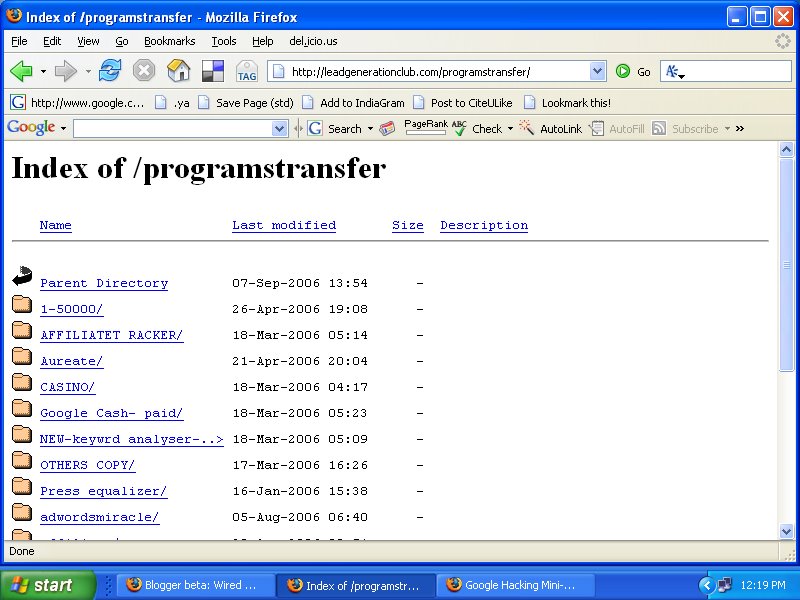
Directory listings provide a list of files and directories in a browser window instead of the typical text-and graphics mix generally associated with web pages. These pages offer a great environment for deep information gathering (see Figure).

Locating directory listings with Google is fairly straightforward. Figure shows that most directory listings begin with the phrase Index of, which also shows in the title. An obvious query to find this type of page might be intitle:index.of, which may find pages with the term index of in the title of the document. Unfortunately, this query will return a large number of false positives, such as pages with the following titles:

  • Index of Native American Resources on the Internet

  • LibDex—Worldwide index of library catalogues

  • Iowa State Entomology Index of Internet Resources

Judging from the titles of these documents, it's obvious that not only are these web pages intentional, they're also not the directory listings we're looking for. Several alternate queries provide more accurate results:

intitle:index.of "parent directory"
intitle:index.of name size

These queries indeed provide directory listings by not only focusing on index.of in the title, but on keywords often found inside directory listings, such as parent directory, name, and size. Obviously, this search can be combined with other searches to find files of directories located in directory listings.

Sometime you can use this hack to hack a file by name.For example-

index.of [file-name].

The file name can be any file name of ebook , s/w , zip file etc.